Showing posts with label Tutorial. Show all posts

Friday, November 13, 2020

Using Java 14 Records in JSF via Eclipse

Introduction

Java 14 introduced the record type. It's basically some sort of an immutable JavaBean without the need to write/generate all these accessor/equals/hashCode/toString methods.

Summarized, the following record in its full form:

public record Person(
    Long id,
    String email,
    LocalDate dateOfBirth
) {}

Corresponds less or more to the following class:

public class Person {
    private final Long id;
    private final String email;
    private final LocalDate dateOfBirth;
    
    public Person(
        Long id,
        String email,
        LocalDate dateOfBirth
    ) {
        this.id = id;
        this.email = email;
        this.dateOfBirth = dateOfBirth;
    }
    
    public Long id() {
        return id;
    }
    
    public String email() {
        return email;
    }
    
    public LocalDate dateOfBirth() {
        return dateOfBirth;
    }
    
    @Override
    public boolean equals(Object other) {
        return other == this || other instanceof Person
            && Objects.equals(id, ((Person) other).id)
            && Objects.equals(email, ((Person) other).email)
            && Objects.equals(dateOfBirth, ((Person) other).dateOfBirth);
    }
    
    @Override
    public int hashCode() {
        return Objects.hash(
            id,
            email,
            dateOfBirth
        );
    }
    
    @Override
    public String toString() {
        return getClass().getSimpleName() + "["
            + "id=" + id + ", "
            + "email=" + email + ", "
            + "dateOfBirth=" + dateOfBirth
        + "]";
    }
}

But then without all the repeated boilerplate :)

It almost matches the JavaBeans Spec, with the exception that the method names of the accessor methods are not prefixed with get/is.

Preparing Eclipse for Java 14 Records

Being able to develop Java 14 Records in Eclipse requires a minimum of Eclipse 2020-06, because Java 14 support was only introduced in that version for the first time. In Eclipse's preferences, you need to ensure that Java ➤ Compiler ➤ Compiler compliance level is set to at least 14.

If you're using Maven, then you need to ensure that the pom.xml properly instructs Maven to use Java 14 as well. Assuming that you've a Maven project which is created the same way as instructed in JSF 2.3 tutorial with Eclipse, Maven, WildFly and H2, then you just need to adjust the maven.compiler.* properties as below:

<properties>
    ...
    <maven.compiler.source>14</maven.compiler.source>
    <maven.compiler.target>14</maven.compiler.target>
    ...
</properties>

And then right-click the project in Project Explorer view and choose Maven ➤ Update Project. It will automatically sort out the Java version set in Project Facets based on the above setting in pom.xml.

However, this is not sufficient. If you attempt to create a record via the New Java Record wizard as available by right-clicking the project and choosing New ➤ Record, and fill out the fields, then Eclipse will error out as:

Project 'projectname' does not have preview features enabled.

Or when you manually create a class representing a record without using the wizard, then Eclipse will still error out as:

Type record is a preview feature and disabled by default. Use --enable-preview to enable

Indeed, the Java 14 Records feature is only available as a so-called "preview feature". This means that it's by default disabled. It's only available when you explicitly pass --enable-preview argument to the java/javac command.

This can be done in Eclipse via Java Compiler settings in project-specific properties or in window-global properties. The one in project-specific properties will be overridden every time you run Maven Update. It's better to configure it in window-global properties. Open Window ➤ Preferences ➤ Java ➤ Compiler. In the Compiler section, uncheck the Use default compliance settings option and then check the Enable preview features for Java 14 option.

Apply and close.

Creating and using Java Records in JSF

Once having configured the Eclipse project to use Java Records as instructed in previous chapter, then creating a new record will not anymore error out in Eclipse.

public record Person(
    Long id,
    String email,
    LocalDate dateOfBirth
) {}

It will only still show a warning like below:

You are using a preview language feature that may or may not be supported in a future release

It basically boils down that Java Records in its current form is not guaranteed to be backwards compatible in a newer Java version. For example, in a future Java version, the accessor methods might be adjusted to follow JavaBeans Spec to have the get or is method name prefix. If this is going to happen, then any calls to person.id() in existing code will not compile anymore and should be adjusted to person.getId(). Or perhaps the feature will even be completely removed. This potential tech debt has just to be carefully taken into account.

This is okay for now.

Now, let's create an example JSF bean which uses these records:

@Named
@RequestScoped
public class Bean {

    private List<Person> persons;
	
    @PostConstruct
    public void init() { 
        persons = new ArrayList<>();
        persons.add(new Person(1L, "john.doe@example.com", LocalDate.of(1978, 3, 26)));
        persons.add(new Person(2L, "jane.doe@example.com", LocalDate.of(1980, 10, 31)));
        persons.add(new Person(3L, "joe.bloggs@example.com", LocalDate.of(2002, 10, 5)));
    }
	
    public List<Person> getPersons() {
        return persons;
    }
}

And a XHTML file which just iterates over this list and prints each item plain:

<ui:repeat value="#{bean.persons}" var="person">
    #{person}
    <br/>
</ui:repeat>

After deploying it to a Jakarta EE server such as WildFly 21.0.0, you will face the following warning in server logs and the #{bean} will not be available in EL (newlines introduced for readability):

WARN [org.jboss.modules.define] (Weld Thread Pool -- 1)
    Failed to define class com.example.Bean in Module "deployment.playground-wildfly-0.0.1-SNAPSHOT.war" from Service Module Loader:
    java.lang.UnsupportedClassVersionError:
        Failed to link com/example/Bean (Module "deployment.playground-wildfly-0.0.1-SNAPSHOT.war" from Service Module Loader): 
        Preview features are not enabled for com/example/Bean (class file version 58.65535). 
        Try running with '--enable-preview'
    at java.base/java.lang.ClassLoader.defineClass1(Native Method)
    at java.base/java.lang.ClassLoader.defineClass(ClassLoader.java:1017)
    at java.base/java.lang.ClassLoader.defineClass(ClassLoader.java:1096)
    at org.jboss.modules.ModuleClassLoader.doDefineOrLoadClass(ModuleClassLoader.java:424)
    at org.jboss.modules.ModuleClassLoader.defineClass(ModuleClassLoader.java:555)
    at org.jboss.modules.ModuleClassLoader.loadClassLocal(ModuleClassLoader.java:339)
    at org.jboss.modules.ModuleClassLoader$1.loadClassLocal(ModuleClassLoader.java:126)
    at org.jboss.modules.Module.loadModuleClass(Module.java:731)
    at org.jboss.modules.ModuleClassLoader.findClass(ModuleClassLoader.java:247)
    at org.jboss.modules.ConcurrentClassLoader.performLoadClassUnchecked(ConcurrentClassLoader.java:410)
    at org.jboss.modules.ConcurrentClassLoader.performLoadClass(ConcurrentClassLoader.java:398)
    at org.jboss.modules.ConcurrentClassLoader.loadClass(ConcurrentClassLoader.java:116)
    at org.jboss.as.weld@21.0.0.Final//org.jboss.as.weld.WeldModuleResourceLoader.classForName(WeldModuleResourceLoader.java:68)
    at org.jboss.weld.core@3.1.5.Final//org.jboss.weld.bootstrap.AnnotatedTypeLoader.loadClass(AnnotatedTypeLoader.java:82)
    at org.jboss.weld.core@3.1.5.Final//org.jboss.weld.bootstrap.FastAnnotatedTypeLoader.createContext(FastAnnotatedTypeLoader.java:114)
    at org.jboss.weld.core@3.1.5.Final//org.jboss.weld.bootstrap.FastAnnotatedTypeLoader.loadAnnotatedType(FastAnnotatedTypeLoader.java:103)
    at org.jboss.weld.core@3.1.5.Final//org.jboss.weld.bootstrap.BeanDeployer.addClass(BeanDeployer.java:87)
    at org.jboss.weld.core@3.1.5.Final//org.jboss.weld.bootstrap.ConcurrentBeanDeployer$1.doWork(ConcurrentBeanDeployer.java:55)
    at org.jboss.weld.core@3.1.5.Final//org.jboss.weld.bootstrap.ConcurrentBeanDeployer$1.doWork(ConcurrentBeanDeployer.java:52)
    at org.jboss.weld.core@3.1.5.Final//org.jboss.weld.executor.IterativeWorkerTaskFactory$1.call(IterativeWorkerTaskFactory.java:62)
    at org.jboss.weld.core@3.1.5.Final//org.jboss.weld.executor.IterativeWorkerTaskFactory$1.call(IterativeWorkerTaskFactory.java:55)
    at java.base/java.util.concurrent.FutureTask.run(FutureTask.java:264)
    at java.base/java.util.concurrent.ThreadPoolExecutor.runWorker(ThreadPoolExecutor.java:1130)
    at java.base/java.util.concurrent.ThreadPoolExecutor$Worker.run(ThreadPoolExecutor.java:630)
    at java.base/java.lang.Thread.run(Thread.java:832)
    at org.jboss.threads@2.4.0.Final//org.jboss.threads.JBossThread.run(JBossThread.java:513)

Note specifically the hint Try running with '--enable-preview'. That's indeed what we need to do.

Doubleclick the WildFly server in Servers view and then click the Open launch configuration link. In the VM arguments field, add the new VM argument --enable-preview as highlighted in the below screenshot:

Restart the server. The warning in server logs is now gone. Opening the example XHTML file will produce this result:

Accessing Java Record "properties" in EL

Trouble will start when you adjust the XHTML to access the "properties" of the Java Record in EL as if they were JavaBean properties:

<h:dataTable value="#{bean.persons}" var="person">
    <h:column>#{person.id}</h:column>
    <h:column>#{person.email}</h:column>
    <h:column>#{person.dateOfBirth}</h:column>
</h:dataTable>

It will throw an exception with the following root cause:

javax.el.ELException: /test.xhtml: The class 'com.example.Person' does not have the property 'id'.
    at com.sun.jsf-impl@2.3.14.SP01//com.sun.faces.facelets.compiler.TextInstruction.write(TextInstruction.java:47)
    at com.sun.jsf-impl@2.3.14.SP01//com.sun.faces.facelets.compiler.UIInstructions.encodeBegin(UIInstructions.java:41)
    at com.sun.jsf-impl@2.3.14.SP01//com.sun.faces.renderkit.html_basic.HtmlBasicRenderer.encodeRecursive(HtmlBasicRenderer.java:276)
    at com.sun.jsf-impl@2.3.14.SP01//com.sun.faces.renderkit.html_basic.TableRenderer.renderRow(TableRenderer.java:374)
    at com.sun.jsf-impl@2.3.14.SP01//com.sun.faces.renderkit.html_basic.TableRenderer.encodeChildren(TableRenderer.java:137)
    at javax.faces.api@3.0.0.SP04//javax.faces.component.UIComponentBase.encodeChildren(UIComponentBase.java:566)
    at javax.faces.api@3.0.0.SP04//javax.faces.component.UIComponent.encodeAll(UIComponent.java:1647)
    at javax.faces.api@3.0.0.SP04//javax.faces.component.UIComponent.encodeAll(UIComponent.java:1650)
    at javax.faces.api@3.0.0.SP04//javax.faces.component.UIComponent.encodeAll(UIComponent.java:1650)
    at com.sun.jsf-impl@2.3.14.SP01//com.sun.faces.application.view.FaceletViewHandlingStrategy.renderView(FaceletViewHandlingStrategy.java:468)
    at com.sun.jsf-impl@2.3.14.SP01//com.sun.faces.application.view.MultiViewHandler.renderView(MultiViewHandler.java:170)
    at javax.faces.api@3.0.0.SP04//javax.faces.application.ViewHandlerWrapper.renderView(ViewHandlerWrapper.java:132)
    at javax.faces.api@3.0.0.SP04//javax.faces.application.ViewHandlerWrapper.renderView(ViewHandlerWrapper.java:132)
    at com.sun.jsf-impl@2.3.14.SP01//com.sun.faces.lifecycle.RenderResponsePhase.execute(RenderResponsePhase.java:102)
    at com.sun.jsf-impl@2.3.14.SP01//com.sun.faces.lifecycle.Phase.doPhase(Phase.java:76)
    at com.sun.jsf-impl@2.3.14.SP01//com.sun.faces.lifecycle.LifecycleImpl.render(LifecycleImpl.java:199)
    at javax.faces.api@3.0.0.SP04//javax.faces.webapp.FacesServlet.executeLifecyle(FacesServlet.java:708)
    ... 51 more

What is happening here? Well, EL only understands JavaBeans Spec and the Java Records do not exactly comply the JavaBeans Spec. EL is basically trying to find the getId() method on the record, but there's only the id() method. Hence EL thinks it does not exist. Moreover, in case of Java Records we shouldn't really talk about "properties", but about "fields".

Adjusting EL expressions from the #{bean.property} syntax to the #{record.accessor()} syntax as below:

<h:dataTable value="#{bean.persons}" var="person">
    <h:column>#{person.id()}</h:column>
    <h:column>#{person.email()}</h:column>
    <h:column>#{person.dateOfBirth()}</h:column>
</h:dataTable>

Will make it work in some EL implementations.

It worked for me in WildFly 21, but it has been reported to not work in other EL implementations.

Resolving Java Records as JavaBeans in EL

In case you want to be able to keep using the #{bean.property} syntax to access fields of Java Records, then you can always create a custom ELResolver which detects Java Records and resolves the EL expressions accordingly. This will be very useful when you intend to share some XHTML templates among beans and records with the same properties.

Detecting whether a given class is a Java Record can be done by checking Class#isRecord(). Obtaining all the record components associated with the record class can be done by Class#getRecordComponents(). Given this information, the following custom ELResolver which basically converts record fields to bean properties should do it:

public class RecordELResolver extends ELResolver {

    private static final Map<Class<?>, Map<String, PropertyDescriptor>> RECORD_PROPERTY_DESCRIPTOR_CACHE = new ConcurrentHashMap<>();

    private static boolean isRecord(Object base) {
        return base != null && base.getClass().isRecord();
    }
    
    private static Map<String, PropertyDescriptor> getRecordPropertyDescriptors(Object base) {
        return RECORD_PROPERTY_DESCRIPTOR_CACHE
            .computeIfAbsent(base.getClass(), clazz -> Arrays
                .stream(clazz.getRecordComponents())
                .collect(Collectors
                    .toMap(RecordComponent::getName, recordComponent -> {
                        try {
                            return new PropertyDescriptor(recordComponent.getName(), recordComponent.getAccessor(), null);
                        }
                        catch (IntrospectionException e) {
                            throw new IllegalStateException(e);
                        }
                    })));
    }
    
    private static PropertyDescriptor getRecordPropertyDescriptor(Object base, Object property) {
        PropertyDescriptor descriptor = getRecordPropertyDescriptors(base).get(property);
        
        if (descriptor == null) {
            throw new PropertyNotFoundException("The record '" + base.getClass().getName() + "' does not have the field '" + property + "'.");
        }

        return descriptor;
    }

    @Override
    public Object getValue(ELContext context, Object base, Object property) {
        if (!isRecord(base) || property == null) {
            return null;
        }

        PropertyDescriptor descriptor = getRecordPropertyDescriptor(base, property);

        try {
            Object value = descriptor.getReadMethod().invoke(base);
            context.setPropertyResolved(base, property);
            return value;
        }
        catch (Exception e) {
            throw new ELException(e);
        }
    }

    @Override
    public Class<?> getType(ELContext context, Object base, Object property) {
        if (!isRecord(base) || property == null) {
            return null;
        }

        PropertyDescriptor descriptor = getRecordPropertyDescriptor(base, property);
        context.setPropertyResolved(true);
        return descriptor.getPropertyType();
    }

    @Override
    public Class<?> getCommonPropertyType(ELContext context, Object base) {
        if (!isRecord(base)) {
            return null;
        }

        return String.class;
    }

    @Override
    public boolean isReadOnly(ELContext context, Object base, Object property) {
        if (!isRecord(base)) {
            return false;
        }

        getRecordPropertyDescriptor(base, property); // Forces PropertyNotFoundException if necessary.
        context.setPropertyResolved(true);
        return true; // Java Records are per definition immutable.
    }

    @Override
    public void setValue(ELContext context, Object base, Object property, Object value) {
        if (!isRecord(base)) {
            return;
        }

        getRecordPropertyDescriptor(base, property); // Forces PropertyNotFoundException if necessary.
        throw new PropertyNotWritableException("Java Records are immutable");
    }

    @Override
    public Iterator<FeatureDescriptor> getFeatureDescriptors(ELContext context, Object base) {
        if (!isRecord(base)) {
            return null;
        }

        Map rawDescriptors = getRecordPropertyDescriptors(base);
        return rawDescriptors.values().iterator();
    }
}

In order to get it to run, register as below in faces-config.xml:

<application>
    <el-resolver>com.example.RecordELResolver</el-resolver>
</application>

Now you can successfully access record fields in EL as if they were bean properties:

<h:dataTable value="#{bean.persons}" var="person">
    <h:column>#{person.id}</h:column>
    <h:column>#{person.email}</h:column>
    <h:column>#{person.dateOfBirth}</h:column>
</h:dataTable>

Using Java Records as JPA Entities

Unfortunately, due to the immutable nature of Java Records, they are not at all useful as JPA entities. But they are definitely useful as DTOs. This has been blogged by Thorben Janssen and Vlad Mihalcea before.

Imagine that you've an entity with "too many" properties wihch would only unnecessarily select every single column when using SELECT p FROM Person p in JPA:

@Entity
public class Person {

    @Id
    private Long id;
    
    @Column
    private String email;
    
    @Column
    private boolean emailVerified;
    
    @Column
    private String firstName;
    
    @Column
    private String lastName;
    
    @Column
    private LocalDate dateOfBirth;
    
    @Column
    private String phoneNumber;
    
    @Enumerated(STRING)
    private Status status;

    @OneToOne(fetch = LAZY)
    private Image profileImage;
    
    @ManyToOne(fetch = LAZY)
    private Address homeAddress;

    @OneToMany(mappedBy = "person", fetch = LAZY)
    private Set<LoginToken> loginTokens;

    @ElementCollection(fetch = EAGER) @Enumerated(STRING)
    private Set<Group> groups;

    // etc ...
}

Then you can use a Java Record as DTO to select only a specific subset of columns, such as ID, first name, last name and profile image in order to present it in some list of cards:

public record PersonCard(
    Long id,
    String firstName,
    String lastName,
    Image profileImage
) {}

Then you can use the constructor expression in JPQL query as demonstrated in the listCards() method below:

@Stateless
public class PersonService {

    @TransactionAttribute(NOT_SUPPORTED)
    public List<Person> listAll() {
        return entityManager.createQuery(
            """
                SELECT 
                    p
                FROM
                    Person p
            """
            , Person.class)
            .getResultList();
    }

    @TransactionAttribute(NOT_SUPPORTED)
    public List<PersonCard> listCards() {
        return entityManager.createQuery(
            """
                SELECT 
                    new com.example.PersonCard(
                        p.id,
                        p.firstName,
                        p.lastName,
                        pi
                    )
                FROM
                    Person p
                        LEFT JOIN FETCH
                    p.profileImage pi
            """
            , PersonCard.class)
            .getResultList();
    }
}

Notice the Text Blocks syntax """ ... """, which is yet another preview feature, but then already introduced in Java 13. This saves you from fiddling with string-concatenating the newlines in JPQL queries which would only produce barely manageable JPQL queries in Java source code.

This shall work just fine in JSF. For example:

@Named
@RequestScoped
public class Bean {

    private List<PersonCard> personCards;

    @Inject
    private PersonService personService;

    @PostConstruct
    public void init() { 
        personCards = personService.listCards();
    }
	
    public List<PersonCard> getPersonCards() {
        return personCards;
    }
}
<ul>
    <ui:repeat value="#{bean.personCards}" var="personCard">
        <li>
            <a href="person.xhtml?id=#{personCard.id}">
                <img src="#{personCard.profileImage.url}" />
                #{personCard.firstName} #{personCard.lastName}
            </a>
        </li>
    </ui:repeat>
</ul>

That's all, folks :) Happy coding!

Thursday, October 16, 2014

JSF 2.2 tutorial with Eclipse and WildFly

WARNING - OUTDATED CONTENT!

There is a newer JSF 2.3 tutorial out with Eclipse / Maven / WildFly / H2.

Introduction

In this tutorial you will learn how to setup a JSF 2.2 (Mojarra) playground with Eclipse 4.4 (Luna) and WildFly 8.1. This tutorial assumes that you're starting from scratch and thus covers every single step necessary towards a working JSF web page. This tutorial is targeted on Windows users and screenshots are also Windows based. Only the steps to install the JDK is different on other operating systems, but the remainder not. In local disk file system path examples, just replace "C:\...\..." by "~/.../..." to make it Unix friendly.

There are also another IDEs available next to Eclipse, e.g. Oracle Netbeans, IntelliJ IDEA, etcetera. The choice for Eclipse is made because it's highly configureable, customizeable, has lots of helpful wizards and .. it's free! True, it may eat memory and it may sometimes crash. Just make sure that your environment has suffuciently free RAM memory for Java EE development. I recommend at least 2GB of free RAM of which 1GB is reserved to Eclipse. Also at least a dual/quad core CPU around 2GHz is recommended to be able to work fluently. Also make sure that you install trusted Eclipse plugins the right and clean way, because the well-known Eclipse-instability is almost always caused by bad plugins.

There are also another application servers available next to JBoss WildFly, e.g. Apache TomEE, Oracle GlassFish, etcetera. The choice for WildFly is made because it ships as being a full fledged Java EE 7 application server already with JSF 2.2 builtin and a lot of other handy Java EE aspects like CDI for bean management and dependency injection, JPA for database connectivity, EJB for database transaction management, JSR303 for bean validation, etcetera. In the 3-year old JSF 2.0 tutorial, GlassFish was been used. The main reason to prefer WildFly over GlassFish is that Oracle stopped with commercial support for GlassFish and thus it essentially isn't ever going to be "production ready". WildFly will be "production ready" once the commercially supported JBoss EAP 7 version will be released. Also, the current Eclipse GlassFish plugin has some terrible bugs causing the server to never finish its startup cycle or causing duplicate deployments.

Back to top

Preparing

Create a working directory where you install and store all related files. In this tutorial we'll use C:\Java as working directory. If you want to store it somewhere else, then you'll have to replace every occurence of "C:\Java" throughout the tutorial by the desired directory.

Back to top

Download and install Java SE 8 JDK

The Java SE 8 JDK contains both the runtime (JRE, java.exe) and the compiler (JDK, javac.exe) for the Java SE 8 API.

You can skip this part if you already have downloaded/installed Java SE 8 JDK.

  1. Surf to the Java SE download page.
  2. You'll see several "download" buttons. Press the one which also says "JDK".
  3. Currently, this will lead you to Java SE Development Kit 8 Downloads page. Accept the License Agreement and choose the right file for your platform. For Windows x64 for example you will get the file jdk-8u20-windows-x64.exe (naming may differ per version, specifically this one is thus JDK 8 update 20), save it to disk. This is the installer.
  4. Execute it and install the JDK in C:\Java\jdk1.8.0_20 and JRE in C:\Java\jre1.8.0_20 respectively (or in their default paths, if you want).
Back to top

Download and install WildFly 8

WildFly 8 is JBoss' implementation of the Java EE 7 API. Note that you do not need to download the Java EE 7 SDK! It basically contains GlassFish 4 along with a bunch of documentation. You do not need it. We're using WildFly instead of GlassFish as the Java EE implementation.

You can skip this part if you already have downloaded/installed WildFly.

  1. Surf to the WildFly downloads page.
  2. Pick the latest "Final" version (currently 8.1.0) and click the "ZIP" link. You will get the file wildfly-8.1.0.Final.zip (naming may differ per version), save it to disk.
  3. Just unzip it and move the wildfly-8.1.0.Final folder to C:\Java\wildfly-8.1.0.Final. Nothing more needs to be done.
Back to top

Upgrade Mojarra in WildFly

WildFly uses Mojarra as JSF reference implementation. WildFly 8.1 ships with Mojarra version 2.2.6 (newer WildFly versions will of course ship with a newer Mojarra version). Sometimes you'd like to upgrade Mojarra in WildFly, because you need a bugfix which is only available in a newer version.

You can skip this chapter if you don't need to upgrade (yet).

  1. Download the Mojarra version to your choice. You need 2 separate JAR files, one with the JSF API (the javax.faces.* classes) and another with the JSF impl (the com.sun.faces.* classes). Scroll to the bottom of the page to pick the newest 2.2.x version. Currently, it's 2.2.8 in flavor of jsf-api-2.2.8.jar and jsf-impl-2.2.8.jar. The following instructions will assume 2.2.8, but you can of course substitute them for newer versions.
  2. Make sure that WildFly is shutdown.
  3. Update JSF API in C:\Java\wildfly-8.1.0.Final\modules\system\layers\base\javax\faces\api\main:
    • Delete or backup the existing JAR file (do NOT keep it in the same folder, even not renamed!).
    • Put jsf-api-2.2.8.jar in there.
    • Open module.xml file for editing and edit the <resource-root> to specify the new file name as in <resource-root path="jsf-api-2.2.8.jar"/>
  4. Update JSF impl in C:\Java\wildfly-8.1.0.Final\modules\system\layers\base\com\sun\jsf-impl\main:
    • Delete or backup the existing JAR file (do NOT keep it in the same folder, even not renamed!).
    • Put jsf-impl-2.2.8.jar in there.
    • Open module.xml file for editing and edit the <resource-root> to specify the new file name as in <resource-root path="jsf-impl-2.2.8.jar"/>
  5. Cleanup WildFly cache/work data just to make sure that there's no old copy of the JARs from previous deployments hanging in there which would potentially only collide with the new JARs:
    • Trash all contents of C:\Java\wildfly-8.1.0.Final\standalone\data (expect of custom data folders like folder containing uploaded files, of course)
    • Trash all contents of C:\Java\wildfly-8.1.0.Final\standalone\deployments
    • Trash all contents of C:\Java\wildfly-8.1.0.Final\standalone\tmp

That should be it.

Back to top

Download and install Eclipse Luna

The Eclipse IDE is available in several flavors. As we're going to develop Java EE web applications, we need the Java EE variant. It contains among others the invaluable WTP (Web Tools Platform) which eases the development of Java EE web applications. The currently latest version is Eclipse Luna 4.4. This is the first Eclipse version to natively support Java 8 (including the lambda awesomeness).

  1. Surf to the Eclipse download page.
  2. In the section Eclipse IDE for Java EE Developers click the download link which fits your platform (for Windows, that's either 32bit or 64bit).
  3. Click the default mirror or pick a mirror and you will get the file eclipse-jee-luna-R-win32-x86_64.zip (naming may differ per version), save it to disk.
  4. Just unzip it and move the eclipse folder to C:\Java\eclipse.
  5. Open the C:\Java\eclipse\eclipse.ini file for editing. At the bottom you'll see those two lines:
    -Xms40m
    -Xmx512m
    
    This sets the initial and maximum memory size pool which Eclipse may use (note that this also implicitly applies to any virtual machine which is internally started by Eclipse, such as application servers). This is really way too low when you want to develop an enterprise application. Better set it to 1GB or maybe 2GB if you've plenty of memory. On my laptop with 6GB of RAM, I've personally set it to 1.5GB:
    -Xms512m
    -Xmx1536m
    
    This way I should be able to run Eclipse with 2 servers simultaneously (thus, three JVMs with together a max of 4.5GB). Watch out that you don't declare more than the available physical memory. When the memory usage exceeds the available physical memory, then it will continue into virtual memory/swapdisk, which will greatly decrease performance and result in major hiccups and slowups.
Back to top

Run and configure Eclipse

After starting Eclipse for the first time, we would like to finetune Eclipse a bit so that we don't after all end in trouble and/or annoyances. Eclipse has enormously a lot of settings of which some default values should after all not have been the default values. Here I'll describe only the most useful/important ones.

  1. Run C:\Java\eclipse\eclipse.exe. You will be asked to select a workspace. Point it to C:\Java\workspace. Check if necessary the checkbox to use it as default.
  2. On the welcome screen, click at the icon with the curved arrow at the right top: Go to the workbench.
  3. In the top menu, go to Window » Preferences. This is the preferences dialogue. Configure it as follows:
    • General
      • Editors
        • Text editors: the option Show print margin should be enabled and set to 120 (helpful indicator to not go beyond 120 chars width in code).
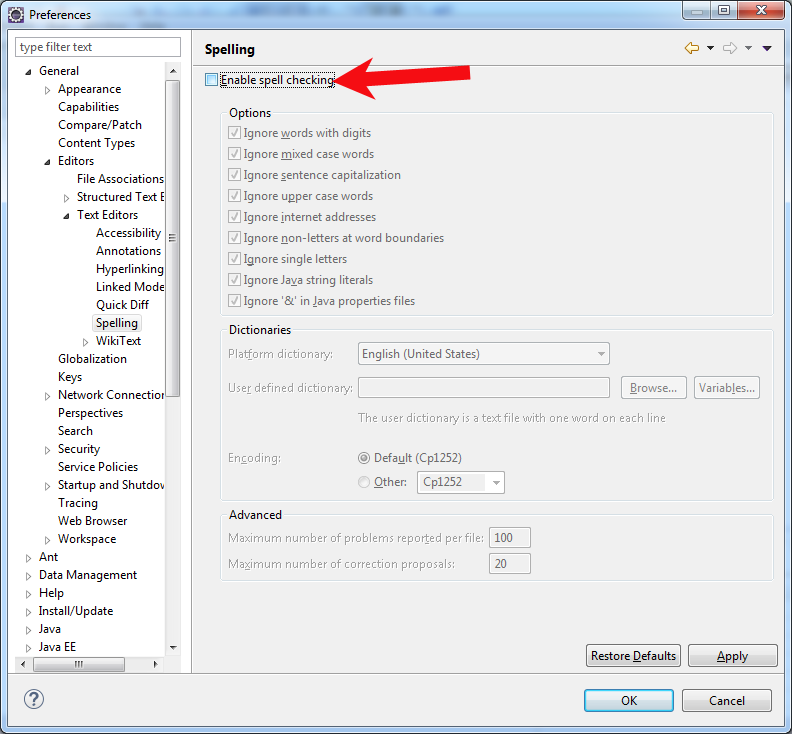
          • Spelling: the option Enable spell checking should be unchecked! This will save you from a big annoyment, because it unnecessarily also spellchecks XML documents like web.xml, faces-config.xml and so on, causing confusing and annoying red underlines over all place.
      • Workspace: the setting Text file encoding must be set to UTF-8. This basically enables world domination.

        Optionally, set New text file line delimiter to Unix. That's prettier when you work regularly on different operating systems (e.g. home/work) via a version control system. Don't do this if you want to be able to edit source code files in Windows Notepad or whatever tool which isn't designed for that ;)
    • Java
      • Compiler: the setting Compiler compliance level must be set to a minimum of 1.6 in order to use JSF 2.2. Higher is always better. I've just kept it at 1.8.
        • Errors/warnings: it should be configured as follows (and you should strive to keep your code free of those errors/warnings to achieve high quality code).
      • Editor
        • Save actions: it should be configured as follows

          With the following Additional actions on top of the defaults, via Configure...:
          • Code Organizing: Remove trailing whitespace
          • Code Style: Use blocks in if/while/for/do statements
          • Member Accesses: Use declaring class as qualifier
          • Unnecessary code: Remove unused imports
      • Installed JREs: Add and select the JDK instead of the JRE. This is required by WildFly.

    • Web
      • CSS files: the setting Encoding must be set to UTF-8 (it's the top option)
      • HTML files: the setting Encoding must be set to UTF-8 (it's the top option)
      • JavaServer Faces Tools
        • Validation
          • Type Coercion Problems should be changed as follows:
            • Unary operation number coercion problems: Warning or Ignore instead of Error.
            • Unary operation boolean coercion problems: Warning or Ignore instead of Error.
            Otherwise value expressions which evaluate to java.lang.Object instead of java.lang.Number or java.lang.Boolean would incorrectly show an error in number/boolean comparisons, for example <h:selectBooleanCheckbox binding="#{checkbox}"> and then elsewhere else in the same view <h:someComponent rendered="#{checkbox.value}">. See also this Stack Overflow answer.
          • Type Assignment Problems should be changed as follows:
            • Method expression signature incompatibility: Warning or Ignore instead of Error.
            Otherwise parenthesisless void action methods would incorrectly show an error. See also this Stack Overflow question and Eclipse issue 243674 which is currently finally (6 years after I reported it!!) scheduled to be included in Luna SR1.
  4. Click OK to close the Preferences dialogue.
Back to top

Install JBoss Tools in Eclipse

JBoss Tools is an extensive plugin which not only covers the mandatory WildFly server plugin, but also a lot of useful tools and intellisense for among others CDI (with EL autocomplete in Facelets!), JAX-RS, Hibernate/JPA, etcetera.

  1. In the top menu, go to Help » Install New Software....
  2. In the field Work with, paste this URL: http://download.jboss.org/jbosstools/updates/development/luna/ and press [enter]. Note: it's currently still in beta, once the stable release is out, change /development in URL by /stable.
  3. Scroll the list to bottom and select JBoss Web and Java EE Development. The remainder is not relevant.
  4. Next, etc, Finish, restart.
  5. It however ships with some poor Facelets templates. We'd like to improve them. Go to Window » Preferences » JBoss Tools » Web » Editors » Visual Page Editor » Code Templates, select the existing Blank Facelet Page template, click Edit, copypaste the following snippet with HTML5 doctype and proper JSF 2.2 declarations in the pattern field and click OK:
    <!DOCTYPE html>
    <html lang="en"
        xmlns="http://www.w3.org/1999/xhtml"
        xmlns:f="http://xmlns.jcp.org/jsf/core"
        xmlns:h="http://xmlns.jcp.org/jsf/html"
        xmlns:a="http://xmlns.jcp.org/jsf/passthrough"
        xmlns:ui="http://xmlns.jcp.org/jsf/facelets">
        <h:head>
            <title>Insert title here</title>
        </h:head>
        <h:body>
            ${cursor}
        </h:body>
    </html>
    
Back to top

Integrate WildFly in Eclipse

We need to familarize Eclipse with any installed application servers so that Eclipse can seamlessly link their Java EE API libraries in the build path (read: the compiletime classpath) of the project. This is mandatory in order to be able to import classes from the Java EE API in your project (you know, the application server is namely the concrete Java EE implementation).

  1. At the bottom box click at the Servers tab to open the servers view.
  2. Click the link which says "No servers are available. Click this link to create a new server...".
  3. Select WildFly 8.x in the list, click Next, Next, and then browse and set the WildFly installation folder C:\Java\wildfly-8.1.0.Final, and make sure that the Runtime JRE is being set to the JDK instead of JRE.
  4. You can start the server by selecting the server entry in the Servers tab and clicking at the green arrow in the toolbar of the box. The Console tab should automatically open and get focus (you can doubleclick the tab to maximize it and bring it back). The server log is shown in there.
  5. Once it is started, go to http://localhost:8080 (where 8080 is the HTTP port as in WildFly config). You should get the default WildFly home page.
  6. You can stop the server by selecting the server entry in the Servers tab and clicking at the red square in the toolbar of the box (note: the Console tab has also such a button, but it doesn't gracefully shutdown the server, instead it immediately terminates the entire JVM/server!).
  7. After stopping, when you're really using JDK8, then you'll see the following line in the log:
    Java HotSpot(TM) 64-Bit Server VM warning: ignoring option MaxPermSize=256m; support was removed in 8.0
  8. Although this warning is harmless, we'd like to get rid of it. Go back to Servers tab and doubleclick the WildFly entry. You'll get the server configuration. Close if necessary the Outline and Task View tabs on the right hand side to get more space. Now, click the Open launch configuration link.
  9. Remove the VM argument -XX:MaxPermSize=256m. That should fix the warning.
  10. While we're at it,add the following VM argument:
    -Dorg.apache.el.parser.COERCE_TO_ZERO=false

    This should avoid these problems whereby Apache EL incorrectly sets primitive's default values such as 0, 0.0 or false when null is being submitted on primitive wrapper properties (e.g. Long, Integer, Double, Boolean, etc).
  11. Start and stop (gracefully!) the server once again ... Look, the warning is gone.
Back to top

Create dynamic web project in Eclipse

Now we can create a "dynamic web project" (basically, a servlet based Java EE project) in Eclipse. We'll in this tutorial not use only JSF, but also take CDI, EJB and JPA along.

  1. At the left box open the Project Explorer tab if not already opened. Rightclick at the box and choose New » Dynamic Web Project.
  2. In the wizard, give it the Project name playground, verify if Target Runtime is set to 'WildFly 8.x Runtime' we just created and Dynamic Web Module version is set to '3.1' (this is actually the Servlet API version, Servlet 3.1 is together with JSF 2.2 part of Java EE 7). Under Configuration select '<custom>' and click Modify... Make sure that you select CDI, JSF and JPA and that Java version is set to 1.8 (it defaults namely to 1.7, which actually doesn't harm, but newer is always better and more fun). Now click Next.
  3. In the next page, 'Java', you can configure the source folder and build folder (there where compiled classes will end up in. Just keep it default and click Next.
  4. In the next page, 'JPA Facet', you can configure the JPA provider and DB connection. As WildFly already ships with Hibernate ORM out the box, just keep it default 'Library provided by Target Runtime'. As we're going to use WildFly's embedded H2 database for now, we don't need an external DB connection, so just keep it default '<none>'. Now click Next.
  5. In the next page, 'Web Module', you may change the Context Root to your insight. This becomes the folder after the domain in URL like so 'http://localhost:8080/playground'. This defaults the project name, which is in this case okay. Further, check the checkbox Generate web.xml deployment descriptor to have Eclipse auto-generate the web.xml. Since Servlet 3.0 it is namely optional, but we'd like to have it anyway so that we can configure some more specific JSF settings and the proper welcome file. Now click Next.
  6. In the next page, 'CDI', you can choose to generate beans.xml file or not. Previously, in Java EE 6, CDI was by default disabled if you didn't have that file. However, in Java EE 7, CDI is now by default enabled even when you don't have that file. That file is now only useful for additional and extended configuration for CDI API, such as the web.xml is for Servlet API. Just keep it default and click Next.
  7. In the next page, 'JSF Capabilities', you can configure the JSF implementation. As WildFly already ships with Mojarra out the box as concrete JSF implementation, just keep it default 'Library provided by Target Runtime'. First rename the JSF Servlet Name from Faces Servlet to facesServlet, fully conform Java variable naming conventions. Then, at URL Mapping Patterns, remove the /faces/* and add *.xhtml. Prefix patterns will namely cause lot of maintenance pain. It's best to use suffix patterns like *.jsf or even better *.xhtml. If you have "plain vanilla" XHTML files for which you'd like not to have JSF's FacesServlet to kick in (which is in turn very weird ... shouldn't those be just HTML files?), then you'd better choose *.jsf so that you can still serve XHTML files without that FacesServlet runs on it. In any case, a major advantage of using *.xhtml as mapping pattern is that this is an easy way to avoid that the enduser can see the JSF source code whenever s/he (accidently) opens the page with *.xhtml in the URL while the FacesServlet is mapped on *.jsf. Finally click Finish.
  8. After creation of the web project, you should get a directory structure similar to the screenshot below.
  9. Due to a combination of constraints in the HTTP/HTML/EL specifications, empty HTML input fields are by default treated as empty String. So, when an empty form is submitted, all String properties will be littered with empty strings instead of being kept null. The average (Java) web developer usually dislikes this (so do I). We can fortunately tell JSF to interpret them as null. Open WebContent/WEB-INF/web.xml file, click if necessary the Source tab at the bottom of the editor, and add the following context parameter:
    <context-param>
        <param-name>javax.faces.INTERPRET_EMPTY_STRING_SUBMITTED_VALUES_AS_NULL</param-name>
        <param-value>true</param-value>
    </context-param>
    
    While we're at it, replace all plain JSP/HTML <welcome-file> entries by a single JSF-compatible entry index.xhtml. The "welcome file" must represent the sole filename of the file which the server should lookup in the folder and serve back when the enduser requests an arbitrary folder (including the root folder). Note that this is quite different from "landing page" or "home page" which is what most starters seem to think.
    <welcome-file-list>
        <welcome-file>index.xhtml</welcome-file>
    </welcome-file-list>
    
    If necessary hit Ctrl+Shift+F to format the xml file nicely.
  10. Save and close the file.
Back to top

Basic Hello World

As a quick Hello World test, we'll first create a simple form which also tests the new JSF 2.2 feature of "passthrough attributes", also in more overgeneralized form known as "HTML5 in JSF". Before JSF 2.2, JSF didn't support specifying custom attributes on UI components, which was preventing JSF developers from using new HTML5 attributes like placeholder, autofocus and data-* attributes.

  1. Rightclick on the newly created playground project and choose new » XHTML Page.
  2. Specify the file name index.xhtml and click Next.
  3. Check the checkbox Use XHTML template and select Blank Facelet Page which we just improved in preferences and click Finish.
  4. The index.xhtml file shows up with the JBoss Tools Visual Page Editor which we don't need here. It's not only experimental, but generally visual page editors just doesn't work when you want to end up with quality code. Just click the red cross at the right bottom corner and then click the Source tab and finally close the Palette tab. This is fortunately an one-time thing.
  5. Change the title to Hello World and add the following test form to the body:
    <h:form>
        <h:inputText id="name" value="#{name}" a:placeholder="What's your name?" />
        <h:commandButton value="Submit" />
        <h:outputText value="Hello, #{name}" rendered="#{not empty name}" />
    </h:form>
    
  6. Open the Servers tab, rightclick the WildFly entry and choose Add and remove.... Here you can add and remove projects from deployments. Add the playground project right here.
  7. Start the server. Once started, go to http://localhost:8080/playground in your favourite webbrowser (and thus not the Eclipse builtin one!). You should see an input field with a HTML5 placholder and a submit button. When you fill the field and press the button, then you should see Hello, [input field value] on the screen.
Back to top

Advanced Hello World - The model

Okay, everything works now as to JSF. Now we can advance to the serious work! As an example project, covering most important Java EE aspects, we'll create a CRUD form with a database.

We first need to create the model. In the architectural perspective of a full fledged Java EE application, the "model" is usually represented by JPA entity classes. Those classes usually represent real world data which is often 1:1 mapped to a data store, such as a SQL database. Think of classes like User, Role, Address, Product, Order, Invoice, etcetera. Such a class should be created as a true Javabean. A Javabean is a class which holds properties as private fields which are exposed by public getters and setters. The average IDE such as Eclipse can autogenerate such classes via a wizard. You can of course also create those classes from scratch just "by hand".

...

Sorry, I stumbled upon a writer's block. I'm posting the above anyway so that you have at least a proper basic hello world. It's been unfinished for more than a month already. The advanced one will come later :)

Back to top

Copyright - None of this article may be taken over without explicit authorisation.

(C) October 2014, BalusC